Welcome ,

PageCarton Documentation

Interested in coding widgets, classes, or methods? Check out the Code section!

How to Add Edit and Delete Buttons with URLs in PageCarton

Share

article by Elizabethh in

This article explains how to add functional Edit and Delete buttons to content items in PageCarton, using direct URL links to PageCarton edit and delete page. These buttons allow owners and admin...

This article explains how to add functional Edit and Delete buttons to content items in PageCarton, using direct URL links to PageCarton edit and delete page. These buttons allow owners and administrators to easily manage individual content entries without needing to browse through the backend manually.

Why Add Edit and Delete Buttons?

This is especially important for maintaining efficient workflows and by enabling inline editing and deletion, you ensure that authorized users can manage content quickly, directly, and securely.

Once you have your content set up in PageCarton, you can add an Edit and Delete buttons to allow authorized users to modify specific content entries directly from the frontend. This button links to the PageCarton content editor using a structured URL that includes the object's unique identifier, typically article_url.

Step-by-Step Implementation

Step 1: Add the Edit Button Url

To include an Edit button url that links to PageCarton's content editor:

  • The placeholder dynamically targets the current article.
  • This link opens the article editor in a new tab.

Step 2: Add the Delete Button Url

To enable a Delete option with a confirmation dialog:

  • This button triggers the delete operation for the respective content.
  • The onclick confirmation helps prevent accidental deletions.

Step 3: Embed Buttons in a Widget or Template

You can combine both buttons and place them inside any widget or layout. Here's a sample implementation:
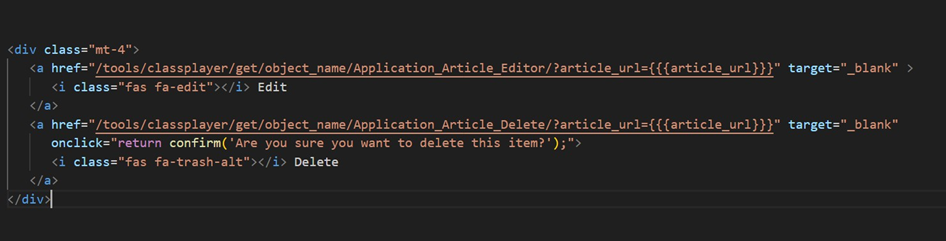
This example ensures that each piece of content rendered includes its corresponding edit and delete actions.

Once you have your content set up in PageCarton, you can add an Edit button to allow authorized users to modify specific content entries directly from the frontend. This button links to the PageCarton content editor using a structured URL that includes the object's unique identifier typically article_url.
3 months ago

A Step By Step Guide To Back up and Downloading your Website on PageCarton.

Share

article by in PageCarton Lessons

In the digital age, website is the face of a business or personal brand. Whether it's a blog, an e-commerce site, or a personal website. Backing up your website files is the first step towards secu...

In the digital age, website is the face of a business or personal brand. Whether it's a blog, an e-commerce site, or a personal website. Backing up your website files is the first step towards securing your website. In this guide, we'll walk you through the steps to effectively back up your website on PageCarton.

To Back Up Your Website Files:

  • Access your Admin Panel.
  • Go to Setting, click on Backup and Restore.
  • On the Backup page click on Create Backup.
  • Give it a Backup description (e.g myfirstbackup), then click on Create.


To Download Your Website Files:

Downloading the backup of your website is a step in ensuring that you have a local copy of your website's files and database. Here's a step-by-step guide on how to download the backup:

  • Access your Admin Panel.
  • Go to Setting, click on Backup and Restore.
  • On the Backup page, your recently Back up file will be there with download option.

                        You can double click on the downloaded file to View.

  • Click on Download.
  • You can check your backup file in your files downloads.


To Export Your Files into another website:

Exporting the backup of your website involves creating an export link containing your website. Here's how you can export the backup:

  • Access your Admin Panel.
  • Go to Setting, click on Backup and Restore.
  • On the Backup page click on Export.
  • On the Backup Editor, select the desired link expiry time e.g 1hr or 10hrs, then click on Export.
  • You can copy the export URL generated to import into another website.


To Restore Your Website Files:

By restoring a backup, you revert your files to a previous state, undoing any changes made since the backup was created. Here's how you can restore backup file:

  • Access your Admin Panel.
  • Go to Setting, click Backup and Restore.
  • On the Backup page click on Restore.
  • On the Backup Restore page click on Restore to restore yout theme files.


To Upload Your Website Files:

   Uploading a backup file to restore your website is for recovering your site in case of data loss or other issues. Here's how you can restore backup file:

  • Access your Admin Panel.
  • Go to Setting, click Backup and Restore.
  • On the Backup page select Upload Backup.
  • On the Upload Backup page, select upload , open the backup file from your files downloads.
  • Click on Import to upload the Backup file selected.
1 yr ago

Changing Number of Posts to Display on a Widget

Share

Documentation Article by Ayoola Falola in

Another interesting customization feature just came in the latest PageCarton. Users of PageCarton can now change the number of post shown in embedded widget from the admin panel. For example, be...

Another interesting customization feature just came in the latest PageCarton. Users of PageCarton can now change the number of post shown in embedded widget from the admin panel.

For example, before now, when a theme developer set that a theme can only have 3 slideshow pictures on the home page, it was impossible for the user of the theme to make it show 5 slideshow pictures instead. They would have to alter the theme and only users that know html could do that.. But with this new feature, while the user is adding dynamic content through the 'Publish Content' section, they can override the developer's default settings for each post sections on the page easily.

The Publish Content section has also been improved to allow some easy access to individual page settings.And also, it is possible to turn off a whole widget section. 

What do you think about this feature?

1 yr ago

Installing PageCarton via Composer

Share

article by Ayoola Falola in Installation , Advanced Topics

If you have Composer installed on your computer, you can easily get PageCarton up by running the following commands on your command line.  # 1. Download PageCarton via composer compose...

If you have Composer installed on your computer, you can easily get PageCarton up by running the following commands on your command line. 


# 1. Download PageCarton via composer
composer create-project pagecarton/pagecarton --prefer-dist -s dev

# 2. Go into the project
cd pagecarton

# 3. Start PageCarton Dev Server
php page serve


With this, you do not need to install any other server. Easy, right? We think so too.

Now you can open PageCarton on your browser by going to http://localhost:8001

Or the Admin Panel on http://localhost:8001/pc-admin

3 yrs ago

Setting up PageCarton via Docker

Share

article by Ayoola Falola in Installation , Advanced Topics

PageCarton now has a few files in its GitHub repository that helps to set it up on Docker easily. If you are familiar with Docker or a newbie, you should be able to get started with PageCarton...

PageCarton now has a few files in its GitHub repository that helps to set it up on Docker easily. If you are familiar with Docker or a newbie, you should be able to get started with PageCarton on Docker without stress. 

The beauty of working with Docker is that you do not have to worry about setting up your server or configuring it. We have created a few settings in the Docker file to ensure the system will be using a compatible server to run your PageCarton in its container. 

Follow these steps to set up PageCarton on Docker

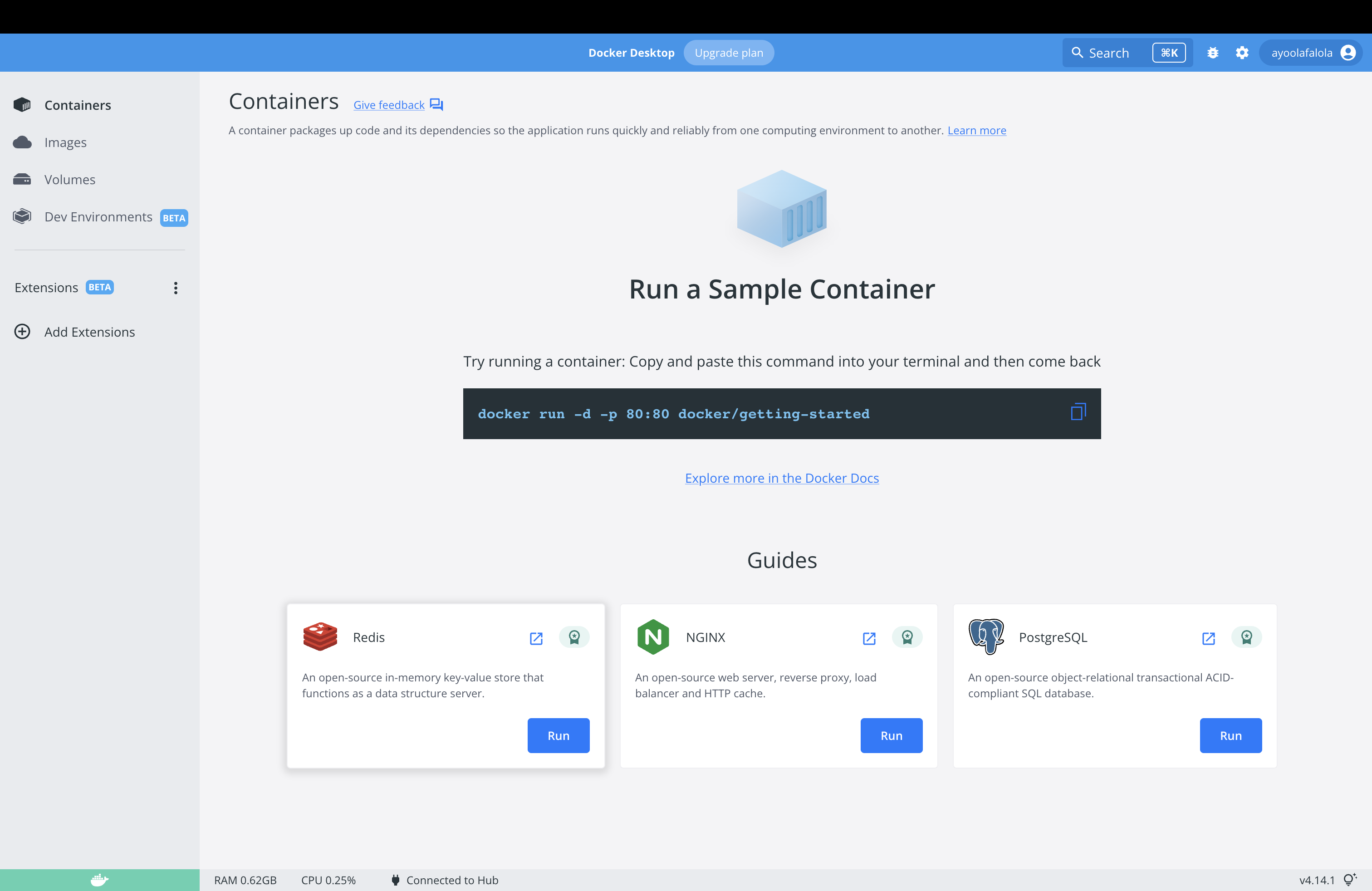
  1. Install Docker Desktop (If you have not done that already). Go to https://docs.docker.com/get-docker/ to learn how to install Docker Desktop for your operating system.
  2. Start up Docker Desktop and ensure it is running


  3. Clone PageCarton from Github to your local system. For this, you need to launch your command line or terminal and enter the clone command
    git clone https://github.com/pagecarton/pagecarton.git
    
  4. Still on the command line, change directory into the cloned 'pagecarton' directory.
    cd pagecarton


  5. Build PageCarton image on Docker by entering the following command on the command line
    docker-compose up -d


That is it, PageCarton is live and you can go ahead to personalize it!

3 yrs ago

Steps in Creating a PageCarton Website Offline

Share

article by Tolulope in Design and Layout

Creating a website has now been made easy with the use of Pagecarton, it's not necessary to know much about coding. If you have your contents ready, and the style of how your website wants to...


Creating a website has now been made easy with the use of Pagecarton, it's not necessary to know much about coding. If you have your contents ready, and the style of how your website wants to look, your website creation with pagecarton is as easy as ABC. 
For this tutorial, we will be using an offline server called LOCALHOST. After installing your favorite offline server, pagecarton will be needed to install on it so that we can access the pagecarton admin panel locally. If you don't have pagecarton installed on your pc, you can download the latest version of pagecarton on Latest PageCarton Update, and go to Installing PageCarton for the simplified instructions on how to install pagecarton on your offline server.
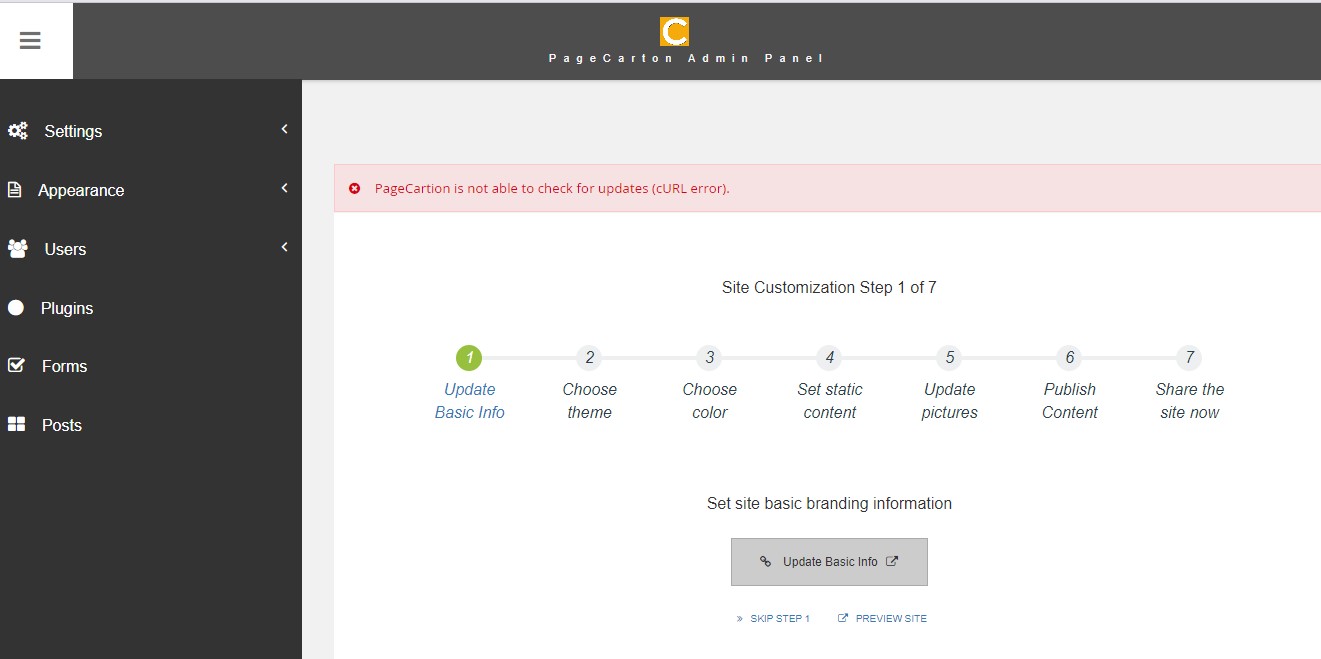
So when successfully installed, go to the PageCarton admin Panel to access your admin panel and get started on your website creation. A pictorial example of the page is shown below: 
 

As shown above, there are 7 steps needed to complete the website creation, and after completing a step, you will get access to start the next step. You can also preview your site (using the 'Preview Site' button) to check for the changes you make on the website.


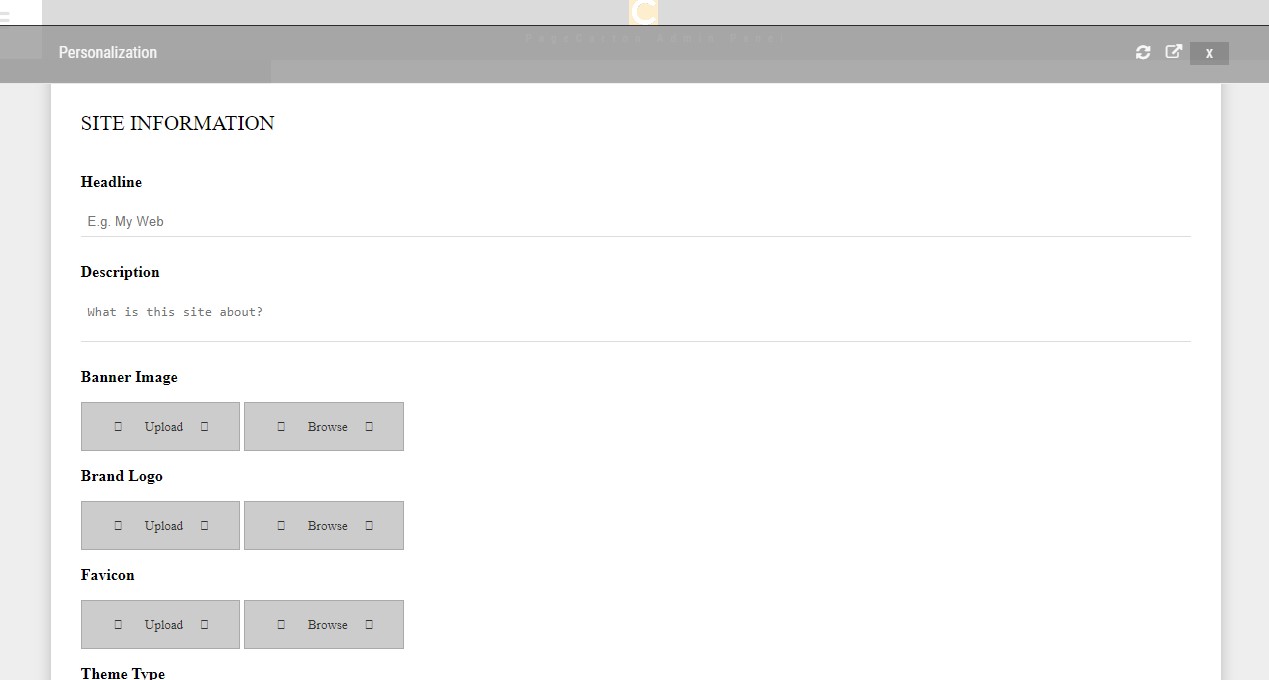
STEP 1 (Update Basic Info): You get to update the details of the site information, which include the site headline, site description, brand logo and the favicon of the website. When they have all been updated, click on continue to go to the next step.

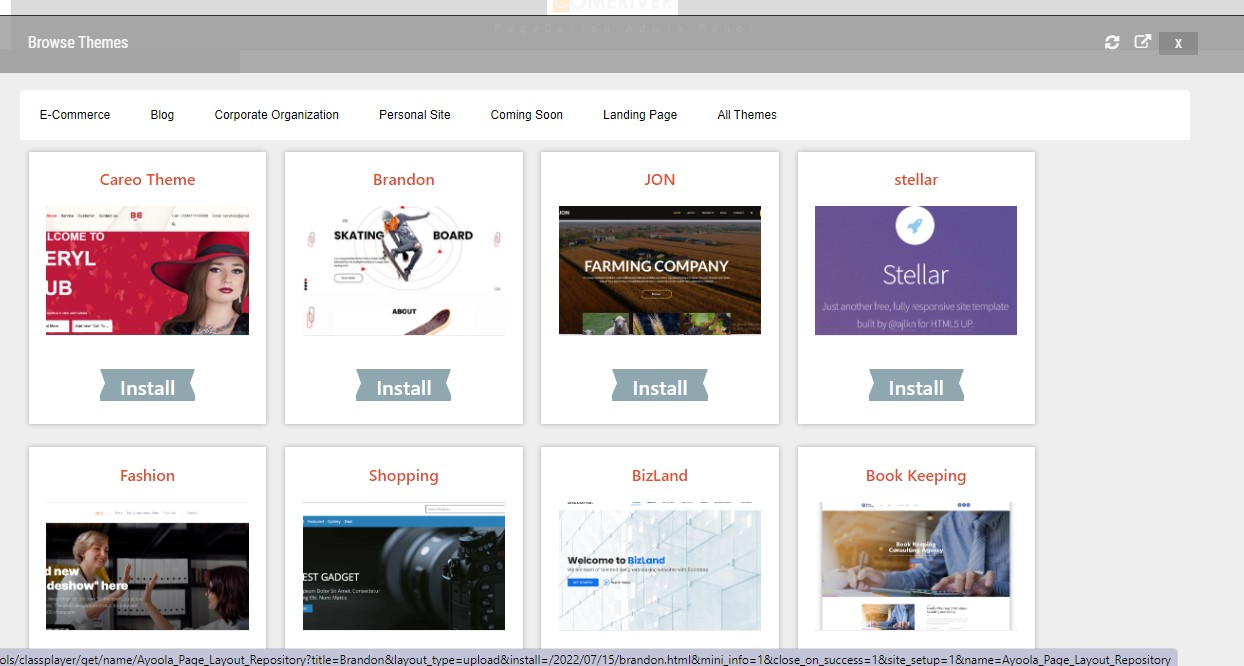
STEP 2 (Choose Theme): Here, you get to pick your desired theme, according to how you want your website to look. Click on the 'Install' button below the theme you wish to use, then click on 'Install theme' in the next page loaded. Click on 'Set as Default Theme' to make it updated automatically on our website.
 

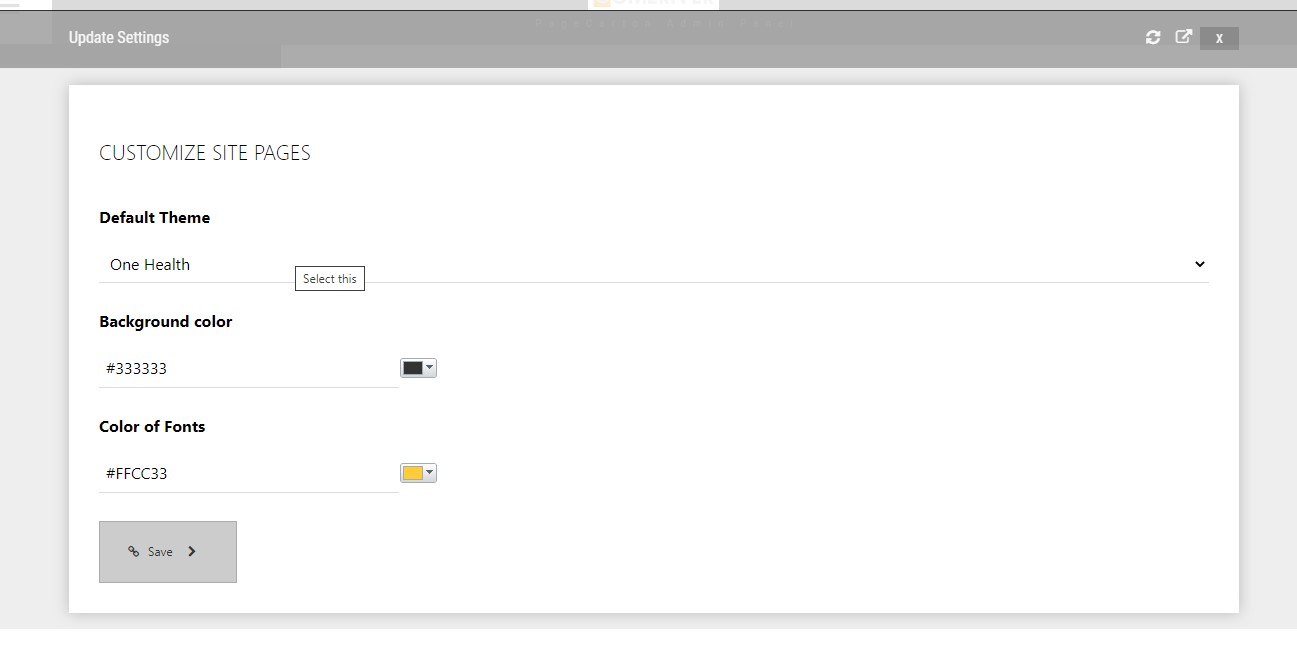
STEP 3 (Choose Color): You get to choose the font color and the background color you want, but you can ignore it if you are cool with the way your website looks with the default color.
 

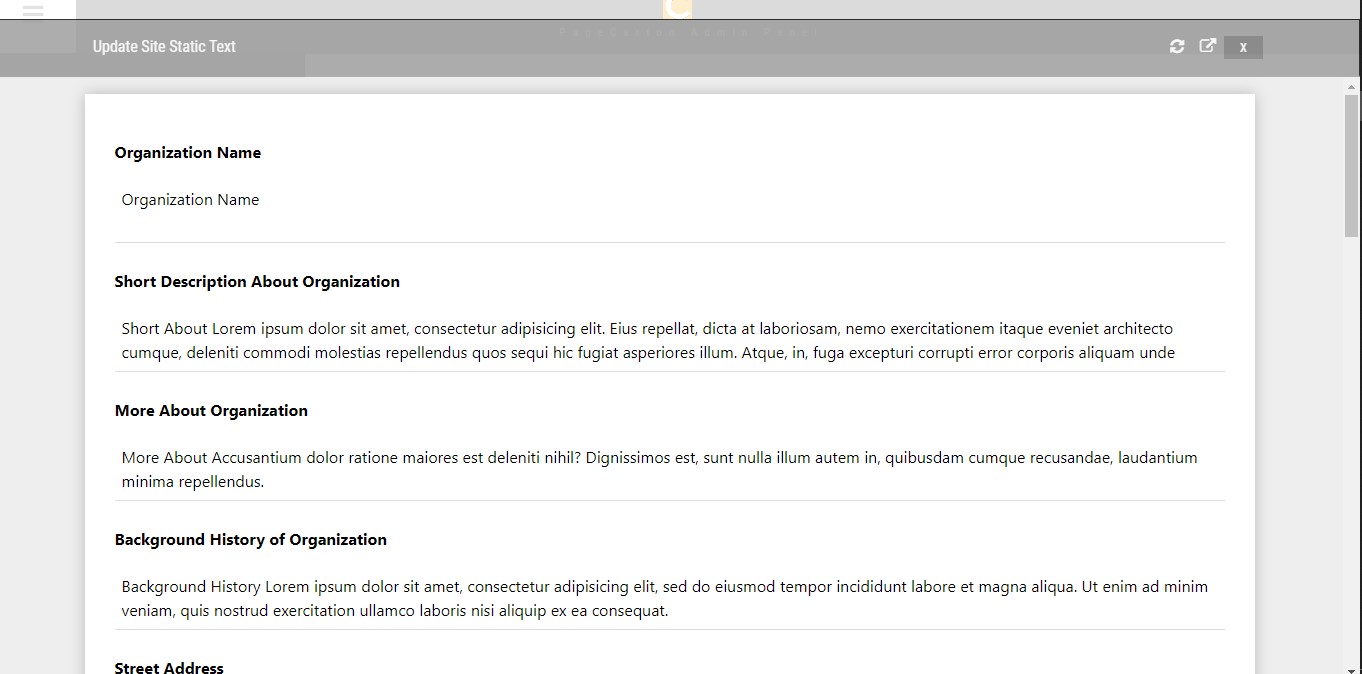
STEP 4 (Set Static Content): On this page, you can set your static texts to what your website is. You get to update your organization name, the short description about organization, the social media links of the website, location, etc.
 

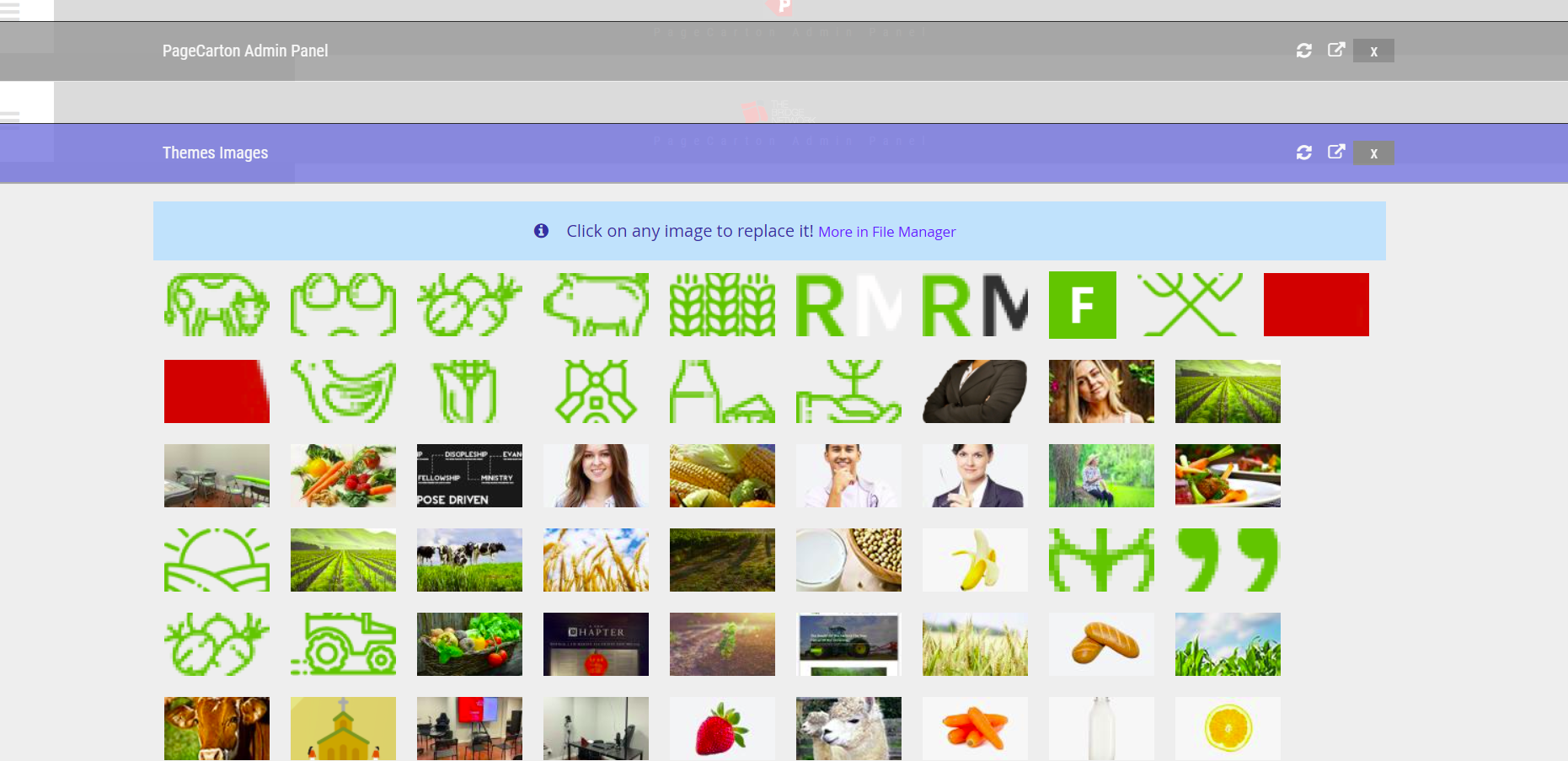
STEP 5 (Update Pictures): This contains all the pictures that is being used on your website. It's just like your website's gallery. You can add and delete pictures in this section too.
 

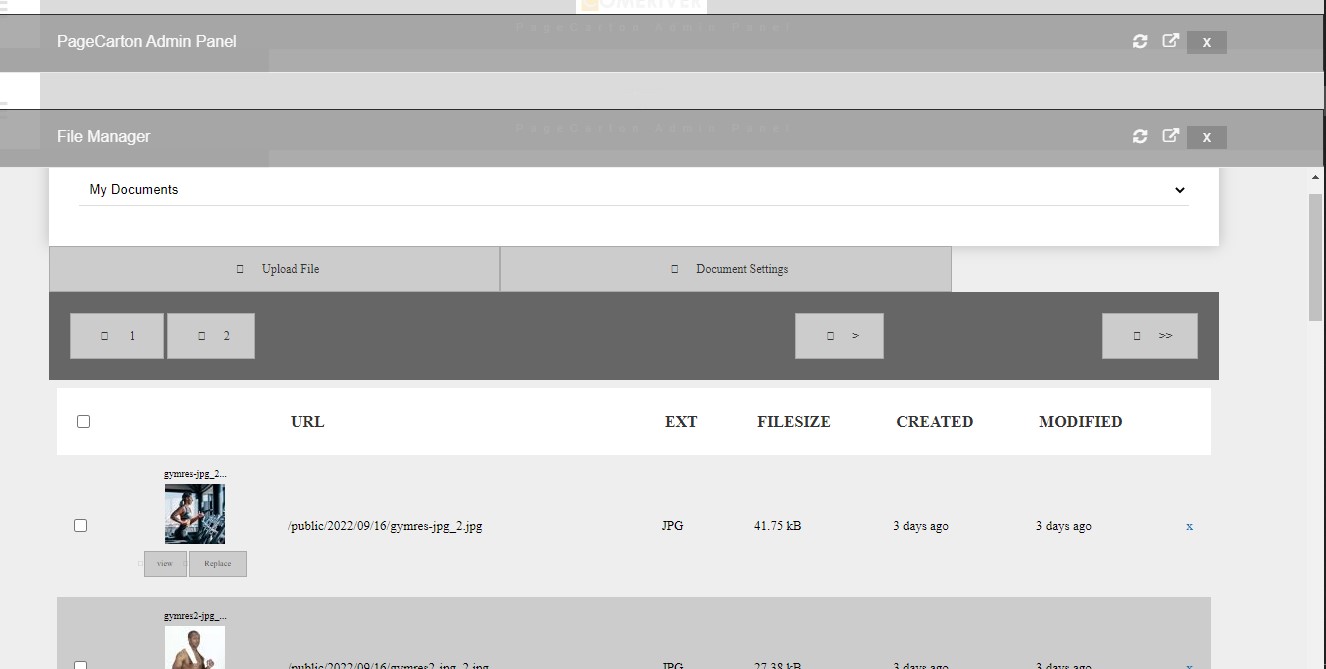
Click on the 'More in File Manager' to see all the uploaded pictures in detail. You can also view, replace and upload more files in this page. To delete any file or p[icture in this section, tick the checkbox ☑ at the left -hand side of the file you want to delete, then go to the bottom of the page where the list of pictures are, then click on the 'Delete' button.


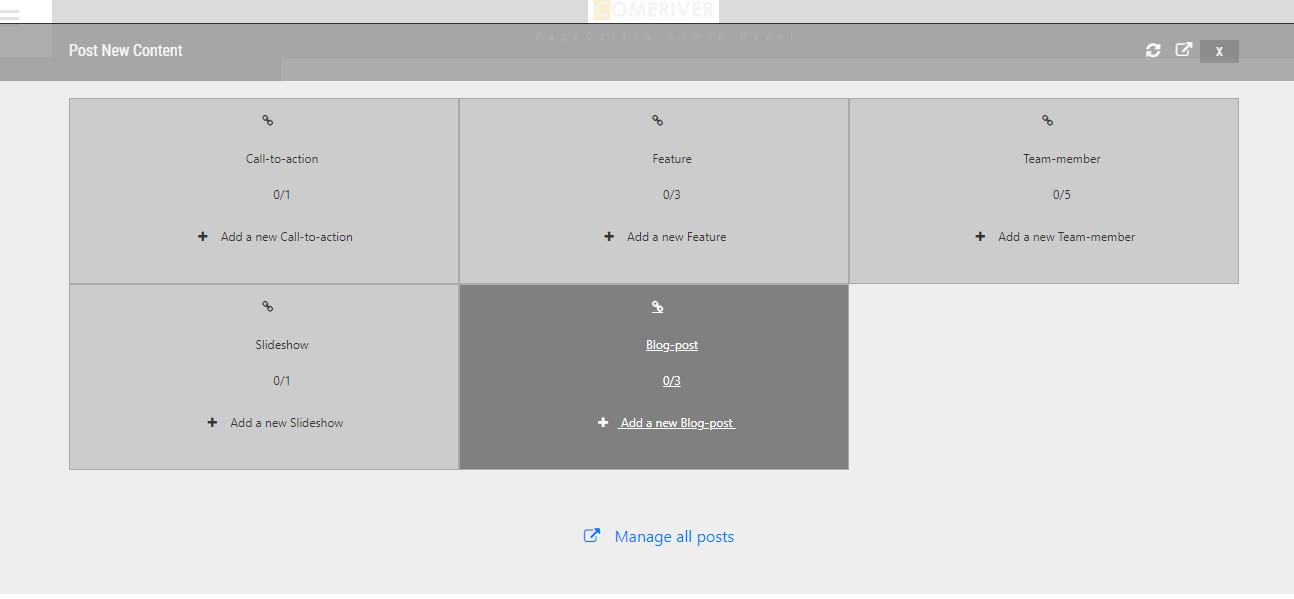
STEP 6 (Publish Content): This is where the main content of the page is updated or uploaded. You can get to upload the contents of your slideshow, testimonials, features, team-members, etc depending on the pattern of your website 


Update the necessary information and contents needed in each step. When you are done, you can choose to share your website online or buy a domain to give you the full access to your website.


https://youtu.be/RPwvatT4EoA

3 yrs ago
← Previous Next →