An example of where this might be useful is where you have a custom login form in a theme and you would like to plug it into the default PageCarton Login widget. Another example is when you have an existing contact form widget on another site or blog and you would like to link to your PageCarton site.
This guide describes how one could link HTML forms to PageCarton Forms easily.
Update PageCarton Settings
First, you need to set PageCarton Forms to accept data when injected from an external form. By default, this is turned off as a guide against spam. However, we need to turn this on now to accept data from our custom HTML Form. Go to:
Home > PageCarton Admin Panel > Custom Forms > Form Settings
Then ensure 'Allow values from external forms' is checked
Get Form Widget URL
First, you need to know the Widget URL for the PageCarton Form you are trying to link. How to locate the URL is dependent on the kind of form it is.
PageCarton Widget Forms
For the Forms in PageCarton Widgets built using PageCarton_Forms() API, the widget URL would be '/widgets/Class_Name' (without the quotes). Change 'Class_Name' to the class name of that widget. The following are the class names of some of most popular widgets in PageCarton core:
|
Form Widget |
Widget URL |
Method |
|---|---|---|
|
Login Form |
/widgets/PageCarton_Signin |
POST |
|
Sign up Form |
/widgets/PageCarton_Signup |
POST |
|
Contact Form |
/widgets/PageCarton_Contact_Form |
POST |
|
Post Creation Form |
/widgets/PageCarton_Post |
POST |
|
Email Opt-in Form |
/widgets/PageCarton_Email_OptIn |
POST |
|
Search Box |
/search |
GET |
So if you are trying to link to the Login Form, the form 'action' attribute should be set to '/widgets/PageCarton_Signin' and the 'method' attribute set to 'POST' (without the quotes).
If your PageCarton installation has a URL Prefix, the widget URL should be prefixed with this value. There are one or two reasons why you may have a URL prefix:
- If the PageCarton was installed in another directory inside the web root, the directory forms the first part of the URL prefix.
- If URL rewriting feature isn't activated on the server, the PageCarton controller 'index.php' forms the second part of the URL prefix.
The URL prefix of your PageCarton installation is the part after the domain name on the 'home page' URL. For instance, if the home page is 'example.com/dir/index.php', the URL prefix is like '/dir/index.php'; if the home page is like 'example.com/dir', the URL prefix is '/dir'. If your home page is like 'example.com', then you don't have a URL prefix and your Widget URL should be used as it is.
Custom PageCarton Forms
For Custom forms built with PageCarton, the widget address would be its 'Share Link' found in 'Custom Forms' in the Admin Panel
Home > PageCarton Admin Panel > Custom Forms
Form Elements
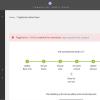
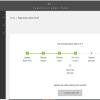
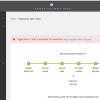
The last but definitely not the least thing to do is to set the 'name' attributes of the form elements to match the name used in the PageCarton Widgets. To know the names used in the PageCarton Widgets, when logged in as an administrator, append '?pc_inspect_widget_form=name' to the Widget URL and it will show what to use as 'name' attribute for each element. For instance, to know what to use as 'name' in the 'Sign in Form', go to 'example.com/widgets/PageCarton_Signin?pc_inspect_widget_form=name' on your browser. It should display as below:
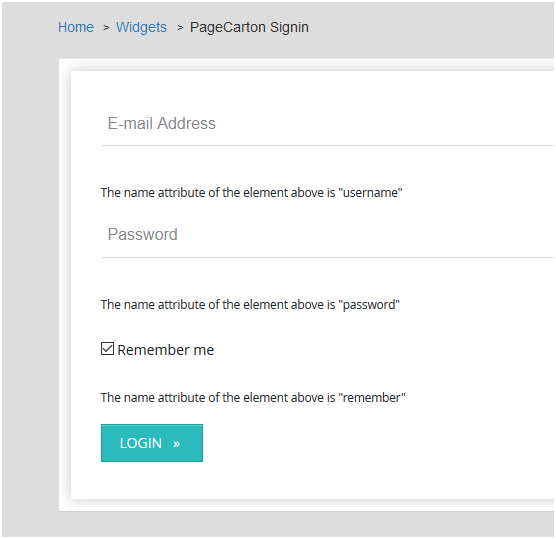
When you have the names handy, you can check to ensure the names of the elements shown tally with what you have in the HTML form
In Code View, you can check to ensure your codes are as below:
<input name="username" >

<input name="password" >
If the form is in the PageCarton Page Editor, you can double-click on the element to activate the advanced editor. Then right click on the element and select 'Text Field Properties'
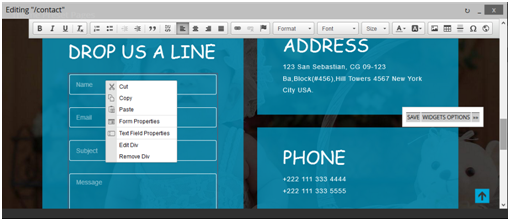
Then set the name attribute to the appropriate values and click OK. Do this for all the required elements and save your page.
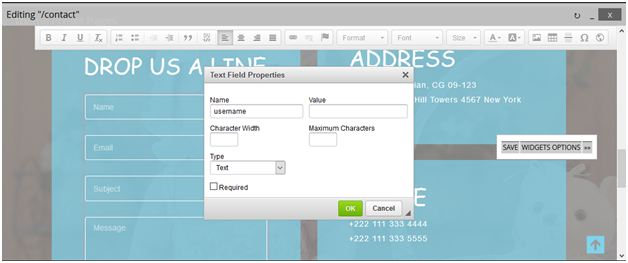
Form 'action' attribute
Now the form 'action' attribute need to be changed to the Widget URL of the PageCarton Form that is to be linked. The way to achieve this is dependent on where the form is.
- If you have access to the form codes, change the form code to change the attribute to be like below:
<form action="/widgets/Class_Name" method="POST" > ... </form> - If the form is on the PageCarton Page Editor, double-click on the form area to launch the advanced editor. Then right-click on the form area and select 'Form Properties'. Then you can change the form action.
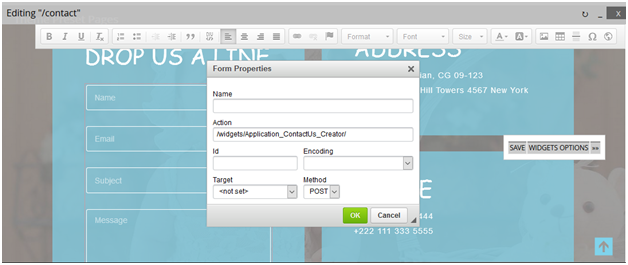
When you are done setting the properties, you can click okay and then, save the page. The form should be functional immediately.