In the digital age, website is the face of a business or personal brand. Whether it's a blog, an e-commerce site, or a personal website. Backing up your website files is the first step towards securing your website. In this guide, we'll walk you through the steps to effectively back up your website on PageCarton.
To Back Up Your Website Files:
- Access your Admin Panel.
- Go to Setting, click on Backup and Restore.
- On the Backup page click on Create Backup.
- Give it a Backup description (e.g myfirstbackup), then click on Create.
To Download Your Website Files:
Downloading the backup of your website is a step in ensuring that you have a local copy of your website's files and database. Here's a step-by-step guide on how to download the backup:
- Access your Admin Panel.
- Go to Setting, click on Backup and Restore.
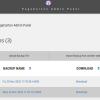
- On the Backup page, your recently Back up file will be there with download option.
You can double click on the downloaded file to View.
- Click on Download.
- You can check your backup file in your files downloads.
To Export Your Files into another website:
Exporting the backup of your website involves creating an export link containing your website. Here's how you can export the backup:
- Access your Admin Panel.
- Go to Setting, click on Backup and Restore.
- On the Backup page click on Export.
- On the Backup Editor, select the desired link expiry time e.g 1hr or 10hrs, then click on Export.
- You can copy the export URL generated to import into another website.
To Restore Your Website Files:
By restoring a backup, you revert your files to a previous state, undoing any changes made since the backup was created. Here's how you can restore backup file:
- Access your Admin Panel.
- Go to Setting, click Backup and Restore.
- On the Backup page click on Restore.
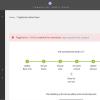
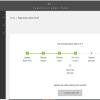
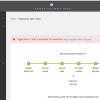
- On the Backup Restore page click on Restore to restore yout theme files.
To Upload Your Website Files:
Uploading a backup file to restore your website is for recovering your site in case of data loss or other issues. Here's how you can restore backup file:
- Access your Admin Panel.
- Go to Setting, click Backup and Restore.
- On the Backup page select Upload Backup.
- On the Upload Backup page, select upload , open the backup file from your files downloads.
- Click on Import to upload the Backup file selected.