Welcome ,
  1. Home
  2. How to add posts on PageCarton

PageCarton Documentation


Interested in coding widgets, classes, or methods? Check out the Code section!

How to add posts on PageCarton


Image

PageCarton makes it easy to create and publish posts such as blog articles, news updates, or announcements on your website. Follow the simple steps below to add a post successfully.

Step 1: Log in to Your PageCarton Admin

Open your website's admin panel and log in using your administrator details. Once logged in, you will see the PageCarton dashboard.

Step 2: Go to the Posts Section

From the dashboard menu:

  • Locate Posts

  • Click on it to view all existing posts.
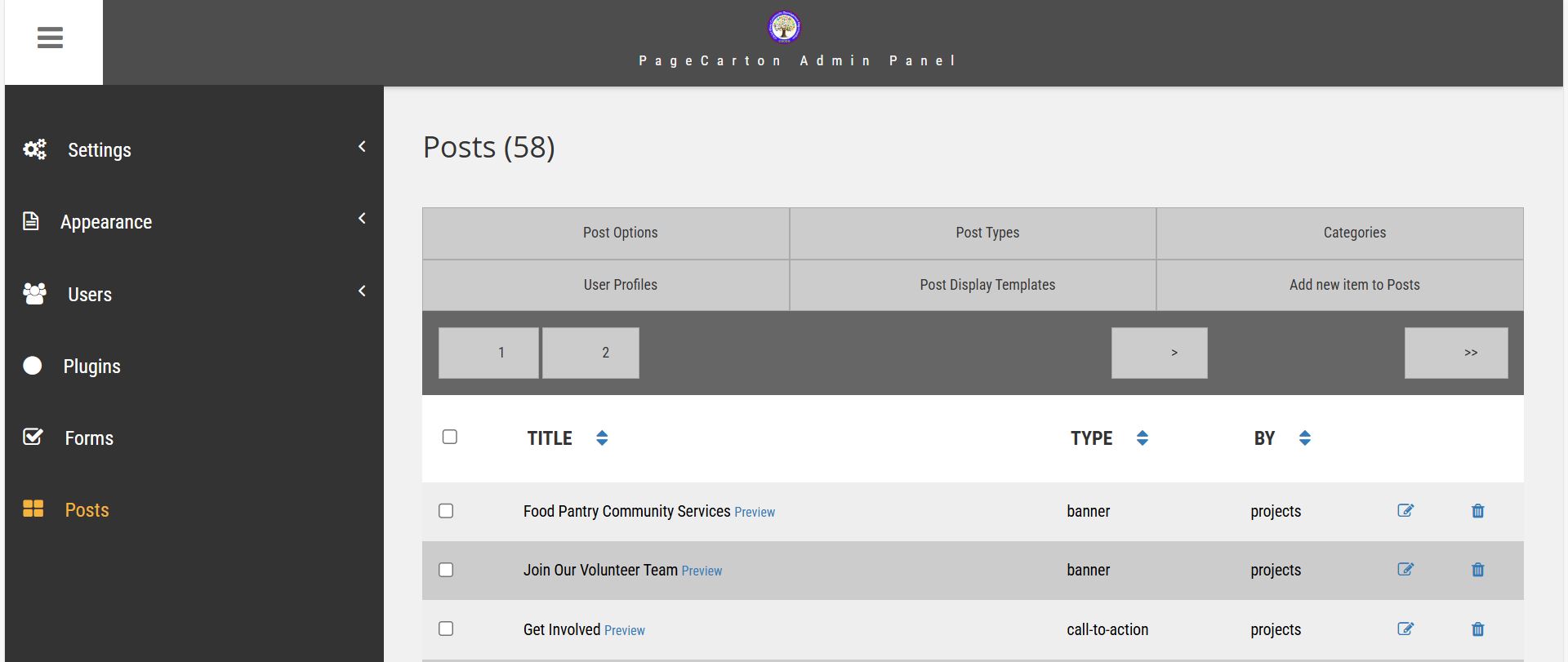
Step 3: Click on "Add New Item to Post"

Look for the Add New Items to Posts button and click it. This will open the post editor page.
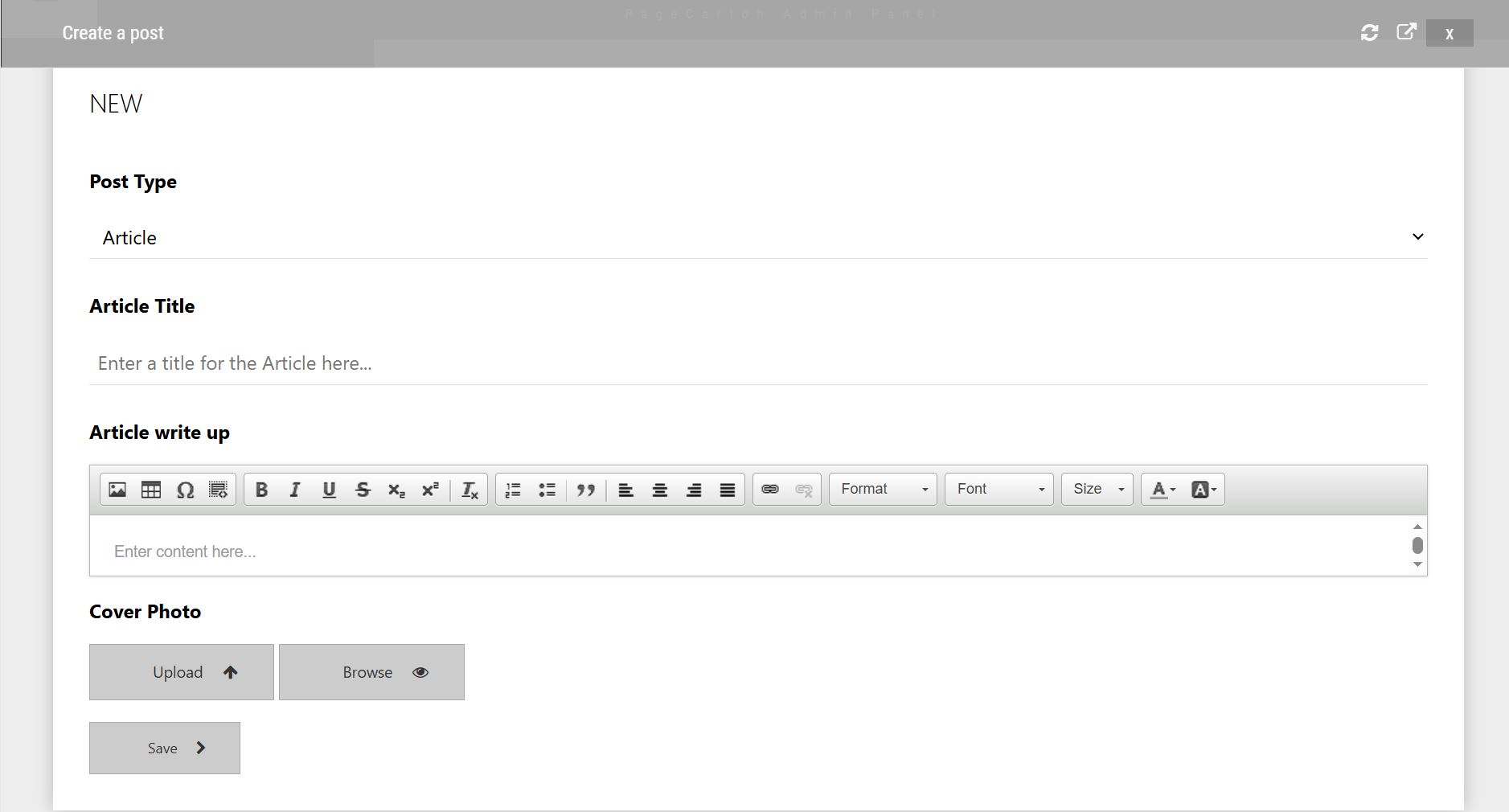
Step 4: Enter the Post Title

Type the title of your post in the title field. Make sure the title is clear, relevant, and easy to understand.

Step 5: Add Your Post Content

In the content editor:

  • Write or paste your post content.

  • Add cover image.

Step 6: Select Article Type

Choose a category for your post, such as Blog, Testimonial, Slideshow. This helps organize your content and makes it easier for visitors to find.

Step 7: Save the Post

Click the Save button. Once save, your post will appear on your website based on your theme layout.

Step 9: Review the Post on Your Website

Visit the front end of your website to confirm that the post is displaying correctly.


← Previous "Creating of Pages on PageCarton""How to Use Access Level Widgets to Control Content Visibility in PageCarton" Next →


Similar article


How to Backup and Restore on PageCarton Photo

How to Backup and Restore on PageCarton

Backing up your PageCarton website helps protect your data against mistakes, server issues, hacking, or accidental deletion. A proper backup allows you to restore your website quickly if anything g...

article


Multi-Site Manager on PageCarton Photo

Multi-Site Manager on PageCarton

The Multi-Site Manager in PageCarton allows you to manage multiple websites from a single PageCarton installation. With the Multi-Site Manager, each site can have its theme, content, and setting...

article


How to Create a Form on PageCarton Photo

How to Create a Form on PageCarton

Forms on PageCarton allow you to collect information from website visitors, such as contact details, inquiries, or feedback. Follow the steps below to create a form on your PageCarton website. S...

article


Creating of Pages on PageCarton Photo

Creating of Pages on PageCarton

Step 1: Log in to the PageCarton Admin Panel 1.     Open your browser. 2.     Visit https://yourdomain.com/pc-admin (For local installation: http://lo...

article


How to Use Access Level Widgets to Control Content Visibility in PageCarton Photo

How to Use Access Level Widgets to Control Content Visibility in PageCarton

This article explains how to use PageCarton's Access Level Widgets to control content visibility based on user roles, such as content owners, invited users, or administrators. It helps ensure t...

article