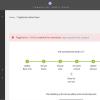
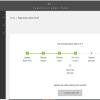
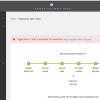
PageCarton is by default configured to run from outside of the web root as a security feature. This ought to help secure the content and file structure from intrusion and hacking attempts.
Good thing is that most web server installations run using an independent user that still have write access to a step outside the web root. To explain this, if the webroot is /home/adegoke/public_html, the webserver also should be able to write to /home/adegoke. PageCarton by default then uses /home/adegoke for example to write both core and site data.
However, a lot of web server installations do not allow writing outside of the web, in this case, the available options is either to change the core and site directory from the default using the pagecarton.json configuration file. The configuration file must be placed in the web root. A sample configuration file can be found in /pagecarton/core/local_html
Permission issues in LAMPP
The root cause of the permission issues usually with LAMPP is that PageCarton assumes that the webserver is running as a user that has priviledge to access all files and directory within the web root and a directory above the web root. Usually the directory is recursively /opt/lampp on xampp linux server.
Why is this issue always with Linux XAMPP or LAMPP server?
1. LAMPP on linux runs as user "daemon" that does not have privilege to write to LAMPP directory. So whenever PageCarton want to extract installation file into /opt/lampp/pagecarton, it would not be able to do that because user daemon does not have write access on /opt/lampp/
2. If you extract it yourself, the files will be created on your own user account and the web server user would also not have access to write into the directory.
Solution
I'll share the two straightforward methods to solve permission issues with PageCarton. There are plenty methods to achieve the same thing.
1. Recursively change ownership of LAMPP directory /opt/lampp to the user the webserver is running on. Usually "daemon" or "www-data". Installation should go smoothly after this. Run the following code on command line to change ownership.
$ chown -hR daemon:daemon /opt/lampp
(If web server is running as daemon user)
This is the recommended method. Do this after you have copied PageCarton files to web root in the location where you want it installed.
2. Create a new directory manually in LAMPP directory named "pagecarton"
Recursively change permissions on this directory to allow anyone to read and write to the directory. Do this after you have copied PageCarton files to web root in the location where you want it installed. Also recursively change permissions on the directory holding the pagecarton files in the htdocs to allow read and write by everyone.
$ chmod -R 0777 /opt/lampp/pagecarton
$ chmod -R 0777 /opt/lampp/htdocs