Sometimes, one may need to upload a large file and if there is a limit in the PHP Configuration, you may not be able to use your PageCarton installation to upload large file. An example is if you want to upload a large theme, you may need to tweak your server settings to make this possible.
By default, the maximum upload file size for PHP scripts is set to varying sizes. Sometimes it is set to as large as 128MB, sometimes, 2MB. However, you may want to change these limits. For example, you can set a lower limit to prevent users from uploading large files to your site. To do this, change the upload_max_filesize and post_max_size directives in your php.ini file.
In some cases, default server settings may not let you upload larger files via your website. To increaes file upload size in PHP, you need to modify the upload_max_filesize and post_max_size variable’s in your php.ini file. This tutorial shows how to increase PHP upload limit in PageCarton by locating the PHP.ini file and updating it accordingly.
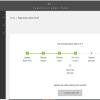
- Login to your PageCarton Admin Panel. Usually a link like http://www.example.com/pc-admin should take you to the PageCarton Admin Panel if your website is powered by PageCarton. Don't forget to change www.example.com to your real domain name if you are coying and pasting.
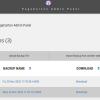
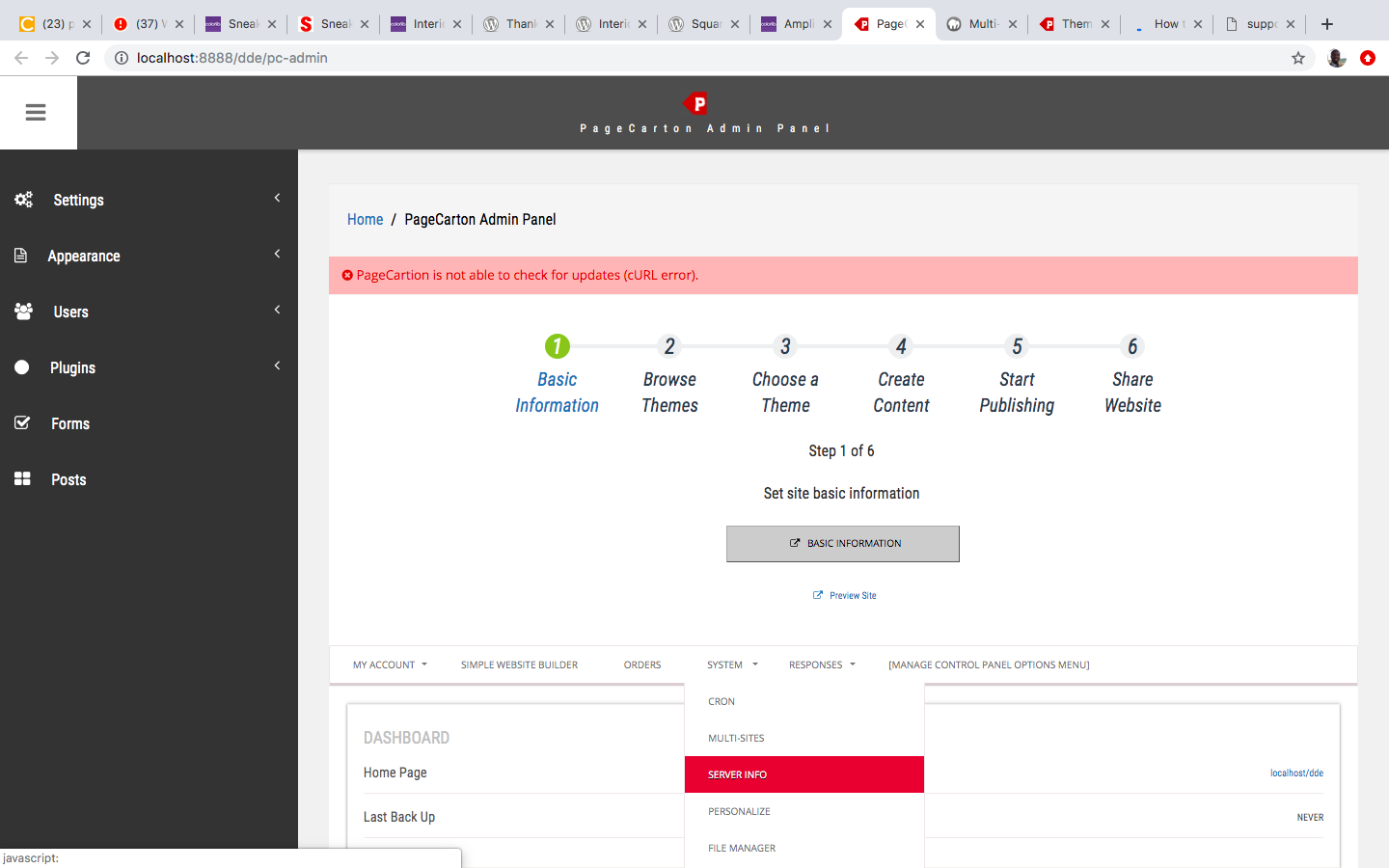
- Navigate to Server Info and Configuration Page. The option should be under the System Settings in the PageCarton Admin Panel.
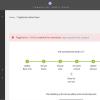
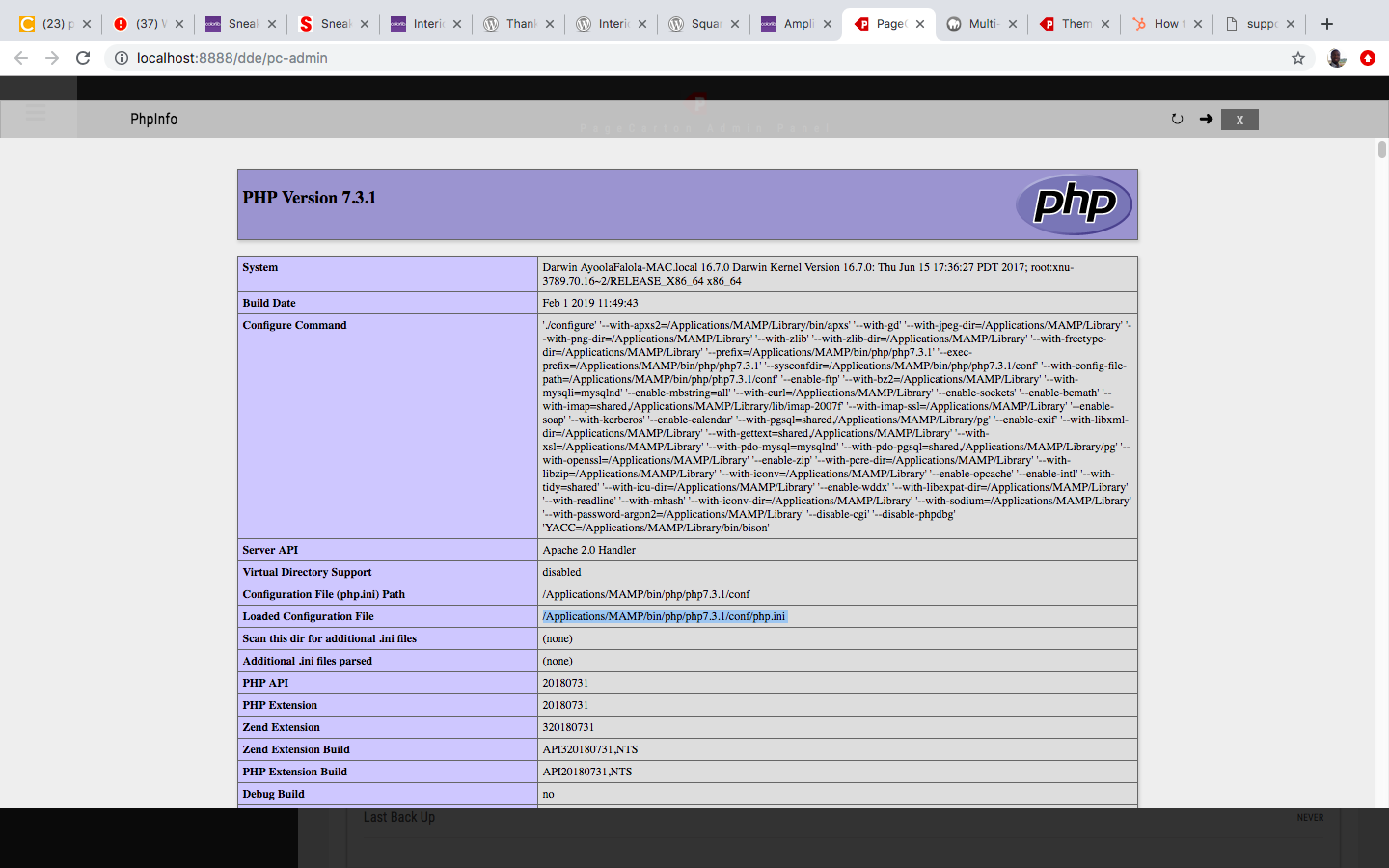
- On the pop-up screen, look for the section where it says "Loaded Configuration File", then chech the corresponding filename to the PHP.ini file being used for the PageCarton installation.
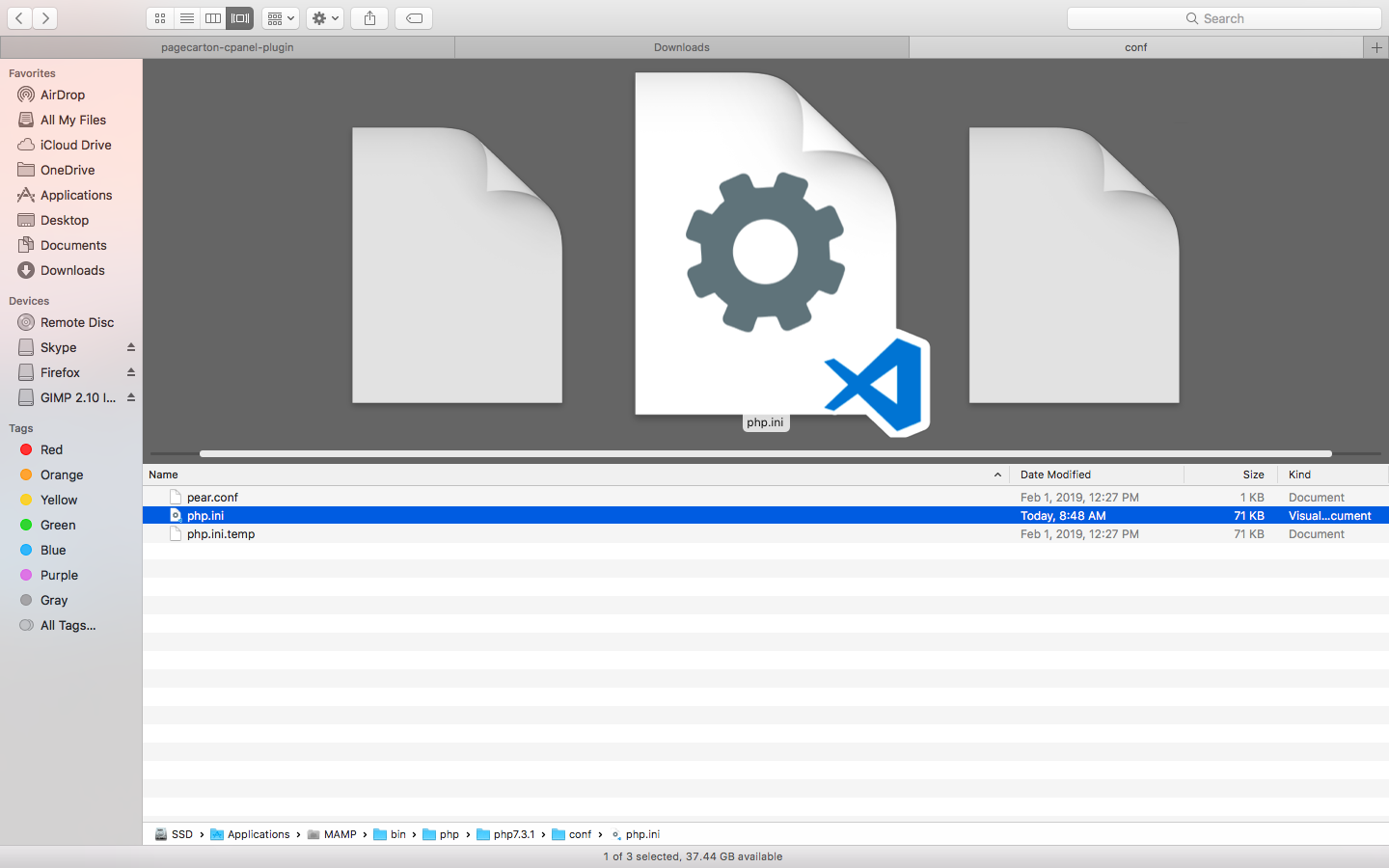
- Locate this file in your file explorer, the file path differs from installation to installation, in this example, we are using MAMP Server on Mac. Your installation or operating system may have this path pointing to a different location
- Open this file in a Code Editor. Any text editor could work fine but using a code editor like Notepad++ , or VSCode is recommended because of their advanced features. The mission is to change some configuration set in this file.
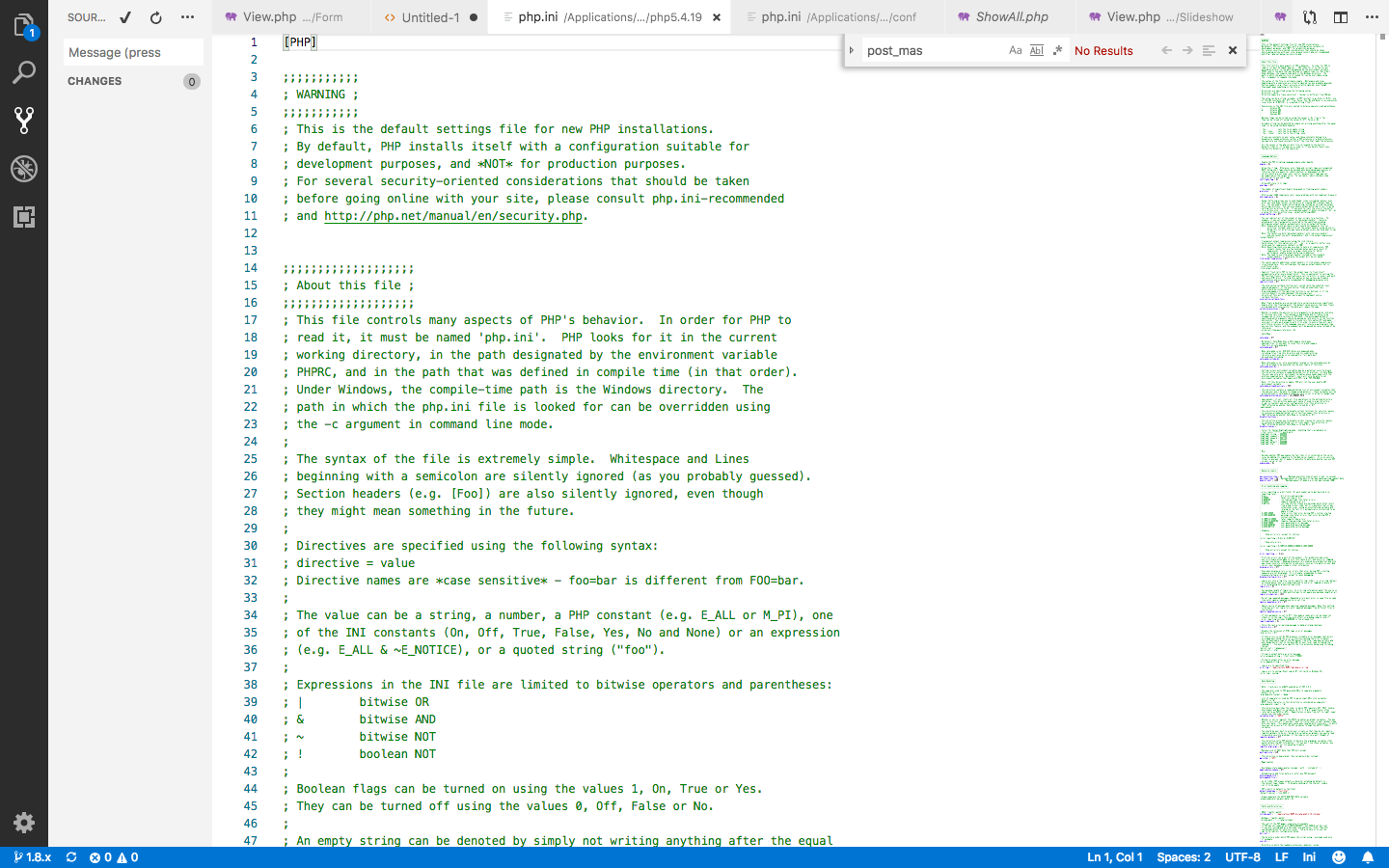
- Locate the part of the text document concerned and change to a preffered value. The following items should have values above the file sizes you want to upload. For example set to 200M to allow uploads up to 200M. For example update file to have the variables to reflect the following
upload_max_filesize = 128M
post_max_size = 128M
memory_limit = 128M
The concerned items are:- upload_max_size
Sets the max size total uploaded file can be - post_max_size
The variablepost_max_sizewhich is used to set the maximum size of POST data that PHP will accept. Setting a value of 0 disables the limit. - memory_limit
Sets the limit to the memory available to your application. This also can affect your upload limit
- upload_max_size
- When you are done updating this file to high values dependng on your case, save the file
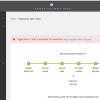
- Restart PHP web service and Web Server. If you don't know how to do this, just reboot the server and start the server as usual.
By default, PHP file upload size is set to maximum 2MB file on most servers, but you can increase or decrease the maximum size of file upload using the PHP configuration file (php.ini), this file can be found in different locations on different OS distributions. Hope this has been resolved with this article.