Welcome ,
  1. Home
  2. Auto Sync PageCarton Core from Another Git Repository

PageCarton Documentation


Interested in coding widgets, classes, or methods? Check out the Code section!

Auto Sync PageCarton Core from Another Git Repository


Image

From PageCarton 1.8.71, it is now possible to sync one's PageCarton core with a third-party repository. In some cases, it is useful to want to connect PageCarton to one's own fork of the PageCarton core from Github. You can do this in few easy steps:

  1. Get the direct link to the ZIP archive of the PageCarton core you would like to sync with. If you are using Github, your link should be like "https://github.com/pagecarton/pagecarton/archive/1.9.x.zip". For example, mine is "https://github.com/ayoolafalola/pagecarton/archive/1.9.x.zip" because that is the direct link to the ZIP file of the git branch I want to work with.
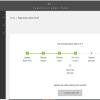
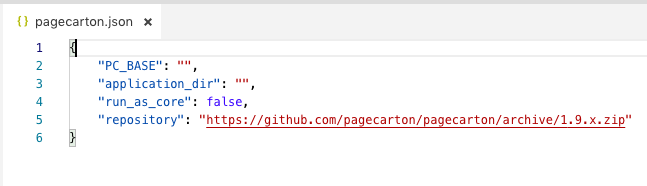
  2. Edit your "pagecarton.json" configuration file in the web root and update the "repository" option to the link to the ZIP archive. You can create your own "pagecarton.json" into the web root if you don't have one; a sample "pagecarton.json" file is located in "pagecartion/core/local_html/" directory, you can copy that to the web root to get started. When you are done, the configuration file in your web root should look like what is in the screenshot below
  3. Run the "Application_Backup_GetInstallation" widget by going to example.com/widgets/Application_Backup_GetInstallation?pc_recreate_installer=1 on your browser. Don't forget to change "example.com" to your own domain name or "localhost" if you are working offline. This is the manual way to sync your core with the set repository. You may need to log in if you are not logged in as an admin

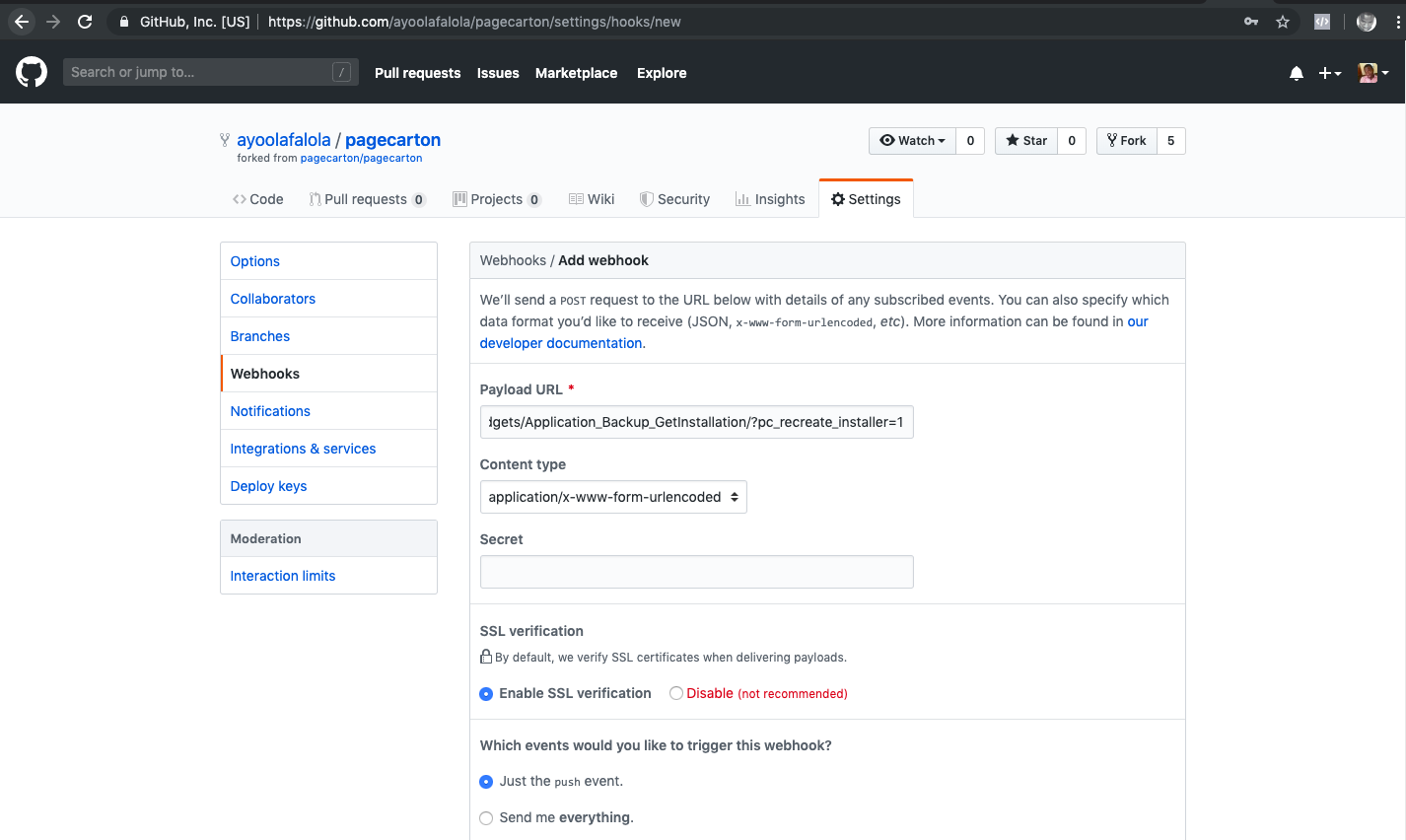
  4. If you would like the server to sync the core immediately you push changes to Git, set up a web hook on your github account to always call example.com/widgets/Application_Backup_GetInstallation?pc_recreate_installer=1 whenever changes are pushed.

     
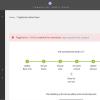
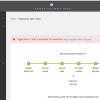
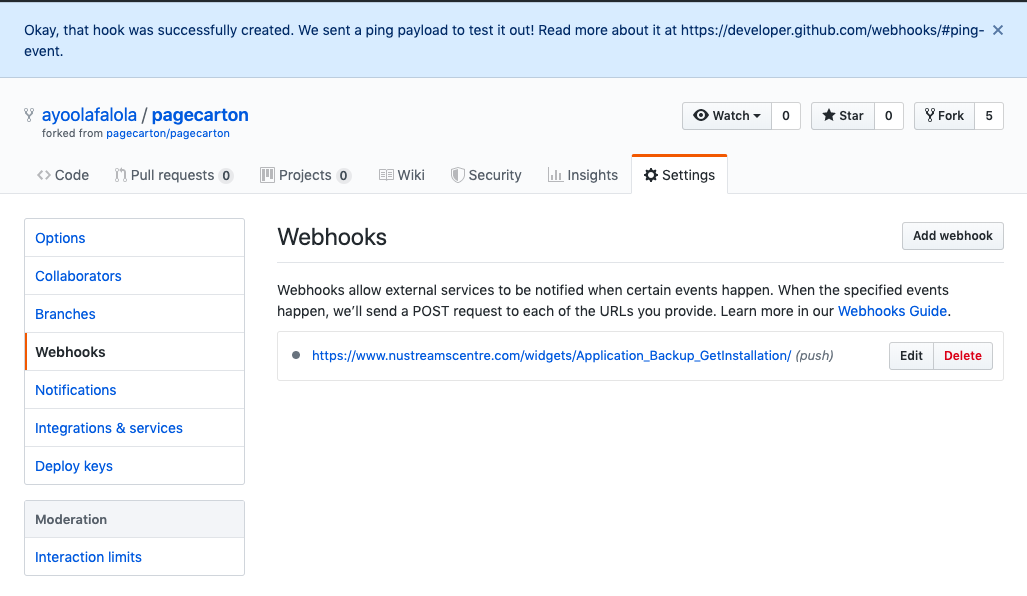
  5. If all is set, hook should be listed. You can make this call as many times as possible.


← Previous "PageCarton Admin Panel""Different Installation Methods" Next →


Similar article


How to Backup and Restore on PageCarton Photo

How to Backup and Restore on PageCarton

Backing up your PageCarton website helps protect your data against mistakes, server issues, hacking, or accidental deletion. A proper backup allows you to restore your website quickly if anything g...

article


Multi-Site Manager on PageCarton Photo

Multi-Site Manager on PageCarton

The Multi-Site Manager in PageCarton allows you to manage multiple websites from a single PageCarton installation. With the Multi-Site Manager, each site can have its theme, content, and setting...

article


How to Create a Form on PageCarton Photo

How to Create a Form on PageCarton

Forms on PageCarton allow you to collect information from website visitors, such as contact details, inquiries, or feedback. Follow the steps below to create a form on your PageCarton website. S...

article


Creating of Pages on PageCarton Photo

Creating of Pages on PageCarton

Step 1: Log in to the PageCarton Admin Panel 1.     Open your browser. 2.     Visit https://yourdomain.com/pc-admin (For local installation: http://lo...

article


How to add posts on PageCarton Photo

How to add posts on PageCarton

PageCarton makes it easy to create and publish posts such as blog articles, news updates, or announcements on your website. Follow the simple steps below to add a post successfully. Step 1: Log ...

article


How to Use Access Level Widgets to Control Content Visibility in PageCarton Photo

How to Use Access Level Widgets to Control Content Visibility in PageCarton

This article explains how to use PageCarton's Access Level Widgets to control content visibility based on user roles, such as content owners, invited users, or administrators. It helps ensure t...

article